Google Review Cards with QR Code: A Practical Guide for Small Businesses
Getting more Google reviews doesn't have to mean repeatedly asking customers for feedback or sending follow-up messages they might never open.
Sometimes, the simplest solution is a small card with a QR code.
Google review cards with QR code give customers a quick way to reach your business's Google review page using their smartphone. Instead of searching for your business, finding the correct listing, and figuring out where to leave a review, they can scan a code and go directly to the relevant page.
For restaurants, salons, local shops, service providers, and other small businesses, these cards offer a practical way to make review requests part of everyday customer interactions.
This guide explains how they work, how to create them, where to use them, and what to look for when choosing a design.
1. What Are Google Review Cards with QR Code?
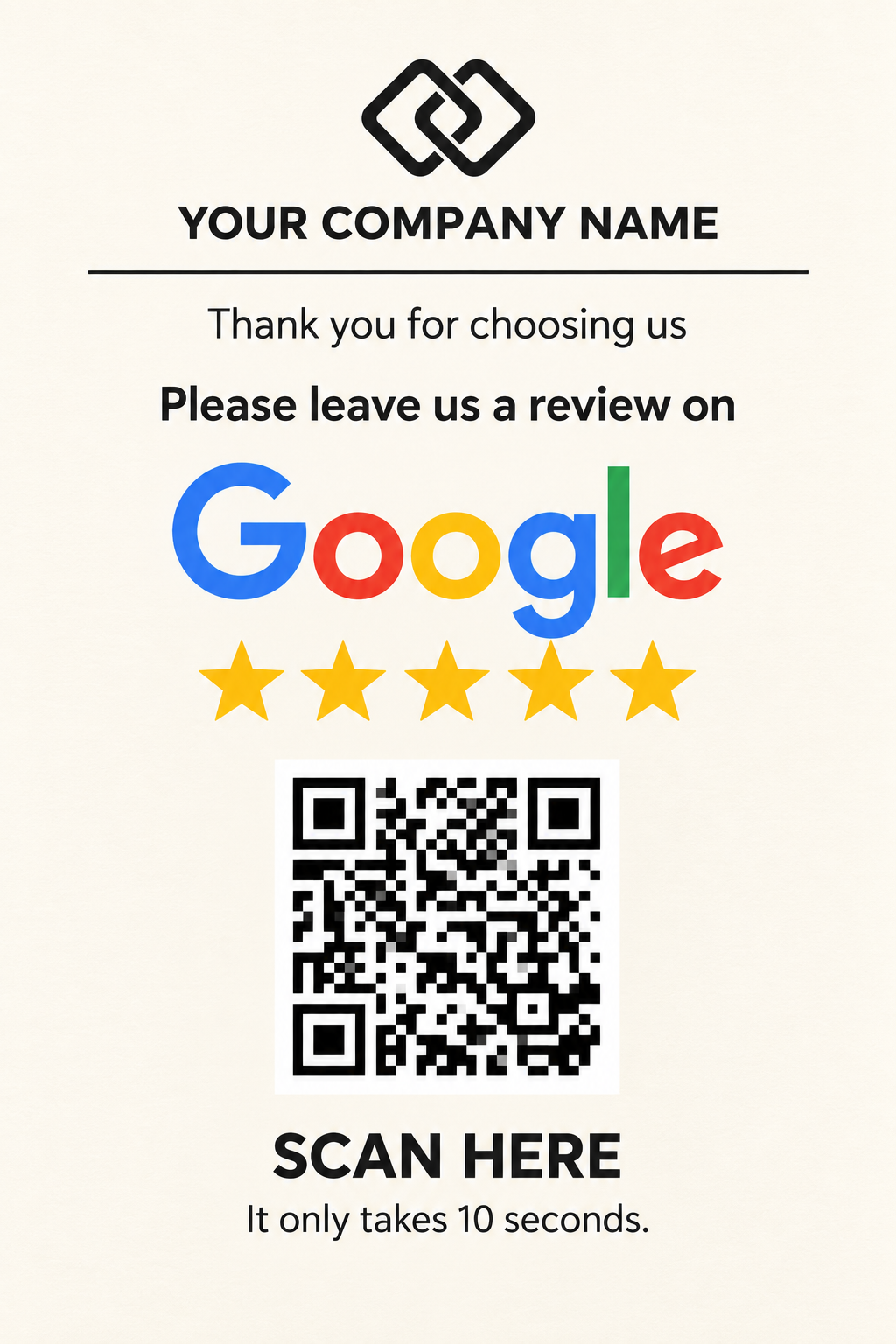
A Google review card is a physical or digital card that displays a QR code linked to a business's Google review page.
When customers scan the code with their smartphone camera, they're directed to the business's review link. From there, they can leave a rating and write about their experience, provided they are signed in to a Google account.
The card typically includes:
- A QR code connected to the business's Google review page.
- A short message inviting customers to share their experience.
- The business name or logo.
- A clean design that makes the code easy to locate and scan.
Some cards are printed and displayed at checkout counters, reception desks, or tables. Others are digital images that businesses can share with customers or display on a screen.
The purpose is the same: make it easier for customers to leave a Google review.
The QR code doesn't generate reviews automatically. It simply removes unnecessary steps between a customer's decision to leave feedback and the review page itself.
2. How Do Google Review QR Code Cards Work?
The process is straightforward.
Step 1: A Customer Sees Your Review Card.
This might happen while paying for a service, waiting at reception, or finishing a meal.
Step 2: They Scan the QR Code.
Most modern smartphones recognize QR codes through the built-in camera app. Customers generally don't need to install anything.
Step 3: The Google Review Page Opens.
If the QR code contains the correct Google review link, the customer is directed to the appropriate Google review interface.
Step 4: The Customer Leaves an Honest Review.
Customers can choose a star rating and, if they wish, add written feedback.
That's it.
A well-designed Google review QR code card creates a simple interaction that fits naturally into the customer experience.
It also eliminates the need to spell out complicated URLs or ask customers to search for your business manually.
3. How to Create a Google Review Card with QR Code
You don't need specialized software to create a basic review card. However, there are a few important steps to get right.
Step 1: Get Your Google Review Link
If you manage your business's Google Business Profile, you can obtain a direct review link from Google's review-sharing options.
Find your business in Google Search or Maps while signed in to the account that manages the profile, and look for the option to request or share reviews.
Copy the review link.
Use the direct review link rather than a generic link to your website or Google Maps homepage.
Step 2: Generate a QR Code
Next, turn that review link into a QR code using a reliable QR code generator.
For a basic setup, a static QR code is usually sufficient. It stores the destination link directly and doesn't require a recurring subscription.
Some providers also offer dynamic QR codes, which allow you to change the destination without replacing the printed code. These may require an ongoing paid service.
For most small businesses using a stable Google review link, a static code is a practical starting point.
Step 3: Add the QR Code to a Card Design
A QR code by itself doesn't explain what customers should do.
Place it inside a clear design with a short invitation, such as:
"Enjoyed your visit? Share your experience on Google."
Or:
"Your feedback helps us grow. Scan to leave a Google review."
The message should be easy to understand, without pressuring customers to leave a positive rating.
Step 4: Export the Card
For a digital card, a high-quality PNG image is generally convenient.
For printing, a print-ready PDF can be preferable, depending on the printer's requirements.
Make sure the exported file maintains enough resolution for the QR code to remain readable.
Step 5: Test the QR Code Before Using It
This step is essential.
Scan the code with at least two different phones if possible.
Check that it opens the correct Google Business Profile review page and doesn't lead to an error, expired link, or unrelated listing.
A beautiful card with a QR code that doesn't work is just a very decorative rectangle.
4. What Makes a Good Google Review QR Code Card?
An effective card doesn't need an elaborate design. In fact, excessive decoration can make it less useful.
The most important qualities are readability, clarity, and ease of scanning.
A Clear, Prominent QR Code
The QR code should be large enough to scan comfortably at the expected viewing distance.
Avoid shrinking it to make room for unnecessary design elements.
Strong Contrast
Dark QR code elements on a light background are generally a reliable choice.
Highly decorative codes with complicated colors, patterns, or backgrounds can create scanning problems.
Enough Empty Space Around the Code
QR codes need a clear margin, often called a quiet zone, around their edges.
Avoid placing text, borders, or decorative graphics too close to the code.
A Short Call to Action
Customers should immediately understand why they're being invited to scan the card.
A clear instruction such as "Scan to leave a Google review" is usually more helpful than a long paragraph.
A Design That Suits the Business
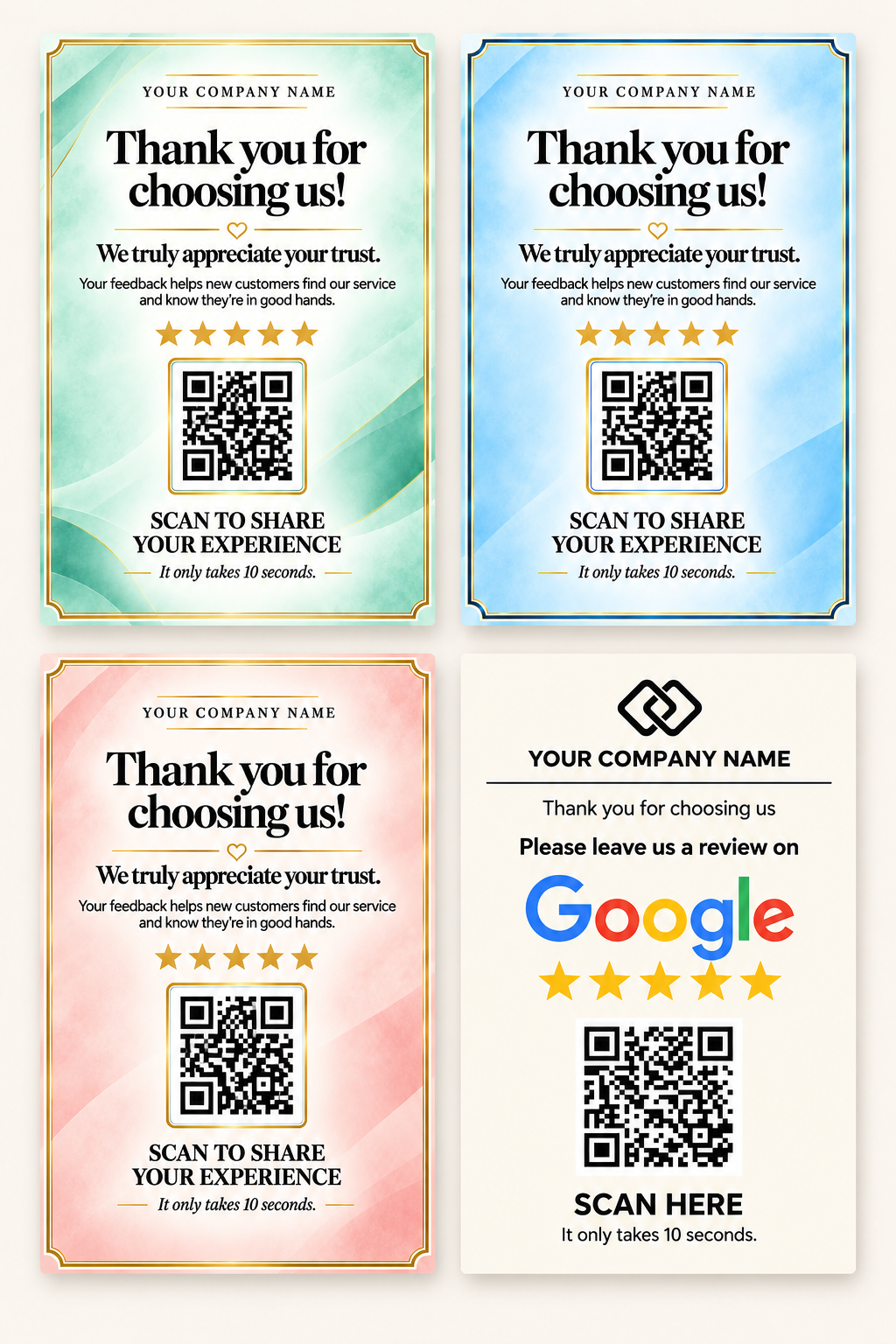
A beauty salon might prefer a soft, minimal design. A café could use something warmer and more playful. A professional service provider might want a simple layout using its brand colors.
The design should complement the business without distracting from the QR code.
The best review card is one that customers notice, understand, and can scan without effort.
5. Where Should You Place Google Review Cards?
Card placement can matter just as much as the design itself.
Ideally, customers should encounter the card at a moment when they've recently experienced your service and have a natural opportunity to share feedback.
Restaurants and Cafés
A small QR review card can be placed near the payment counter, at the takeaway collection point, or on a table.
It should be visible without interfering with the dining experience.
Hair Salons and Beauty Businesses
Reception desks, payment areas, and mirrors near the service area can be useful locations.
Staff can also mention the card naturally after completing an appointment.
Retail Stores
The checkout area is an obvious location because customers are already completing an interaction with the business.
A compact card or countertop display may be more practical than a large poster.
Hotels and Guesthouses
Review cards can be displayed near reception or checkout.
Guests who have completed their stay can easily access the review page while their experience is still fresh.
Local Service Providers
Cleaning companies, repair professionals, and home-service businesses may prefer a digital QR card that can be shared after a completed appointment.
The card could also appear on a printed thank-you note or service document.
The guiding principle is simple: place the review request where it feels relevant, visible, and convenient—not intrusive.
6. Digital vs. Printed Google Review Cards
Google review QR code cards can be used in both printed and digital formats.
Neither is universally better. The right choice depends on how you interact with customers.
Printed QR Code Cards
Printed cards work well in physical locations where customers can scan them directly from a countertop, table, or display.
They're particularly practical for restaurants, retail shops, salons, and reception-based businesses.
Once printed, they can remain in place without any ongoing effort.
Digital QR Code Cards
Digital cards are convenient for businesses that prefer electronic communication or want to avoid printing.
They can be included in customer communications, displayed on a second screen, or used as an image in a digital presentation.
However, there's an important usability consideration: a QR code displayed on someone's own phone isn't always the easiest way for that person to open a link.
When sending a digital Google review card directly to a customer, it's useful to include a clickable Google review link alongside the QR code.
That gives customers the option to open the review page immediately rather than having to scan an image on their own device.
A business can also use both formats: a printed version for in-person interactions and a digital version for follow-up communication.
7. Common Mistakes to Avoid with QR Review Cards
Small design and setup mistakes can make Google review cards less effective.
Using the Wrong Google Review Link
Always verify that the code directs customers to the correct business listing.
Businesses with multiple locations should pay particular attention to this.
Making the QR Code Too Small
A code that looks fine on a computer screen may become difficult to scan after printing.
Test the final printed size whenever possible.
Adding Too Much Text
A review card doesn't need to explain every benefit of leaving feedback.
A short, friendly invitation is enough.
Placing the Card Somewhere Customers Won't Notice
An attractive card hidden behind the counter is unlikely to get much attention.
Choose a visible position where customers can scan it comfortably.
Asking Only Satisfied Customers for Reviews
Google's review policies prohibit selectively soliciting positive reviews and offering incentives in exchange for reviews.
Invite genuine feedback without trying to influence the rating.
A neutral message that welcomes customers' honest experiences is the safer approach.
Forgetting to Test the Final Design
Test the QR code after exporting the image and, if applicable, after printing.
Don't assume that a code that worked in the design editor will necessarily scan correctly in every final format.
8. Should You Make Your Own Google Review Card or Order a Custom Design?
There are two straightforward approaches.
Create a Card Yourself
You can use a design editor, add your Google review QR code, choose fonts and colors, and export the finished card.
This gives you control over the design.
However, you'll need to handle the setup, layout, alignment, export settings, and testing yourself.
If you're comfortable with basic design tools, that may be perfectly reasonable.
Choose a Personalized, Ready-Made Card
Another option is to have the card personalized for your business.
Rather than starting from a blank template, you choose a design and provide the details needed for customization.
This approach can be particularly convenient if you want a professional-looking result without spending time adjusting layouts or editing templates.
At Review Cards App, we offer personalized digital Google review cards designed to give small businesses an easier way to present their review QR codes.
Explore our personalized Google review cards and available designs through the product links on Review Cards App.
If you're still deciding between QR code cards, NFC cards, editable templates, and other products, see our broader guide:
Best Google Review Cards for Business: QR Code, Digital, NFC & Done-for-You Options
That guide compares the different categories, while this article focuses specifically on creating and using QR code review cards.
9. How to Encourage Customers to Scan Your Review Card
Simply displaying a QR code doesn't guarantee that customers will use it.
A few practical habits can make review requests feel more natural.
Keep the request short.
A simple "If you'd like to share your experience, you can scan the card here" is usually sufficient.
Choose an appropriate moment.
It's generally better to mention reviews after the service has been delivered rather than interrupting the customer during the experience.
Make the card easy to reach.
Customers shouldn't have to ask for the card or move other objects to scan it.
Don't pressure anyone.
An invitation to share honest feedback is different from repeatedly asking for a five-star rating.
Be consistent.
A visible card and an occasional, natural reminder can become a routine part of customer service.
The objective isn't to persuade every customer to leave a review. It's to make the process convenient for those who want to share their experience.
10. Frequently Asked Questions
Are Google Review QR Code Cards Free?
You can create a basic Google review QR code card yourself using free design and QR code tools.
The cost depends on whether you choose to print the card, purchase a template, or order a personalized design.
Do Customers Need an App to Scan the QR Code?
Usually not. Most modern smartphones can recognize QR codes using their built-in camera.
Customers will generally need to sign in to a Google account to submit a review.
Can I Put a Google Review QR Code on a Business Card?
Yes. A QR code can be included on a standard business card, provided there's enough space for it to remain readable and easy to scan.
You can place it on the back alongside a short invitation to share feedback.
Do Google Review QR Codes Expire?
A static QR code doesn't normally expire on its own.
However, it relies on the destination link remaining valid.
Dynamic QR code services may impose subscription or account requirements.
Can I Use the Same QR Code on Multiple Cards?
Yes. If all the cards should direct customers to the same Google review page, you can reuse the same QR code across different designs and printed materials.
For businesses with multiple locations, use the appropriate review link for each location.
Can I Offer Discounts in Exchange for Google Reviews?
No. Google's policies prohibit offering incentives, including discounts or free products, in exchange for reviews.
Ask customers to share their genuine experiences without tying the request to a reward.
Can I Use a QR Code for Both Printed and Digital Cards?
Yes. The same review QR code can appear in both formats.
For digital messages delivered directly to a customer's phone, consider including a clickable review link as well.
Final Thoughts: A Small Card That Makes Review Requests Easier
Google review cards with QR code are a straightforward way to simplify the process of requesting customer feedback.
You don't need complicated equipment, specialized technical knowledge, or a large marketing budget to get started.
The essentials are a working Google review link, a scannable QR code, a clear invitation, and a design that fits your business.
Whether you create the card yourself or choose a personalized version, focus on making it easy for customers to share honest feedback.
A good review card doesn't need to be complicated.
It just needs to work.
Want a Google review card without designing it yourself?
Explore the personalized digital review card designs available from Review Cards App and choose a style that suits your business.