Google Review QR Code Business Card: What to Include and How to Use It
A Google review QR code business card is a small printed card that lets customers scan a QR code and go directly to your business's Google review page. It usually includes your business name, a short review request, and a QR code connected to your Google Business Profile.
You can hand these cards to customers after a service, include them with purchases, or leave them on a counter. The business-card format is convenient because it's small enough to distribute and doesn't require any special equipment.
But there's a difference between a card that looks attractive and one that actually works well. The QR code needs enough space, the message should be immediately understandable, and customers should receive the card at a natural moment.
Here's what to include, how to arrange the design, and when business-card-sized review requests make sense.
What Is a Google Review QR Code Business Card?
A Google review QR code business card looks similar to an ordinary business card, but its primary purpose is to request customer feedback.
Instead of directing people to your website or contact details, the QR code opens your Google review page.
A customer scans the code with their smartphone camera, follows the link, and can leave a rating and written review while signed in to their Google account.
There are two common ways to use this format.
A Dedicated Google Review Business Card
This card has one purpose: inviting customers to review your business.
The front might display your business name, a short thank-you message, and a prominent QR code.
The back could contain additional branding or a simple instruction.
This is a good choice when you want to distribute cards specifically after a purchase or completed service.
A Regular Business Card With a Review QR Code
You can also add a Google review QR code to an existing business card.
For example, the front could display your name, company, telephone number, and website, while the back contains a review invitation and QR code.
This allows one card to serve two purposes: sharing contact information and requesting reviews.
However, a combined design can become crowded. If you don't have enough space for a readable QR code, a separate review card is usually the better choice.
What Should You Include on a Google Review Business Card?
An effective Google review business card design doesn't need much text.
The essential elements are:
- Your business name or logo: So customers recognize who is requesting the review.
- A clear invitation: Such as "How Was Your Experience?" or "Share Your Feedback on Google."
- Your Google review QR code: Connected to the correct review page for your business.
- A short scanning instruction: Such as "Scan to Leave a Google Review."
That's enough for a dedicated review card.
You can include brand colors or a short thank-you message, but don't let those elements compete with the QR code.
For visual styles and example wording, explore these Google review card ideas, from minimalist layouts to branded thank-you designs.
For example, compare these two approaches.
Too much information:
"Thank you for choosing our business! Customer satisfaction is extremely important to us. Your feedback helps us improve our services and continue providing excellent experiences. Please take a moment to share your thoughts with our team and other potential customers."
A better alternative:
"Thank You for Visiting!"
"How Was Your Experience?"
"Scan to Leave a Google Review."
The shorter version is easier to read at a glance and leaves more room for a functional QR code.
Remember that the card isn't a brochure. Its job is to make one action clear.
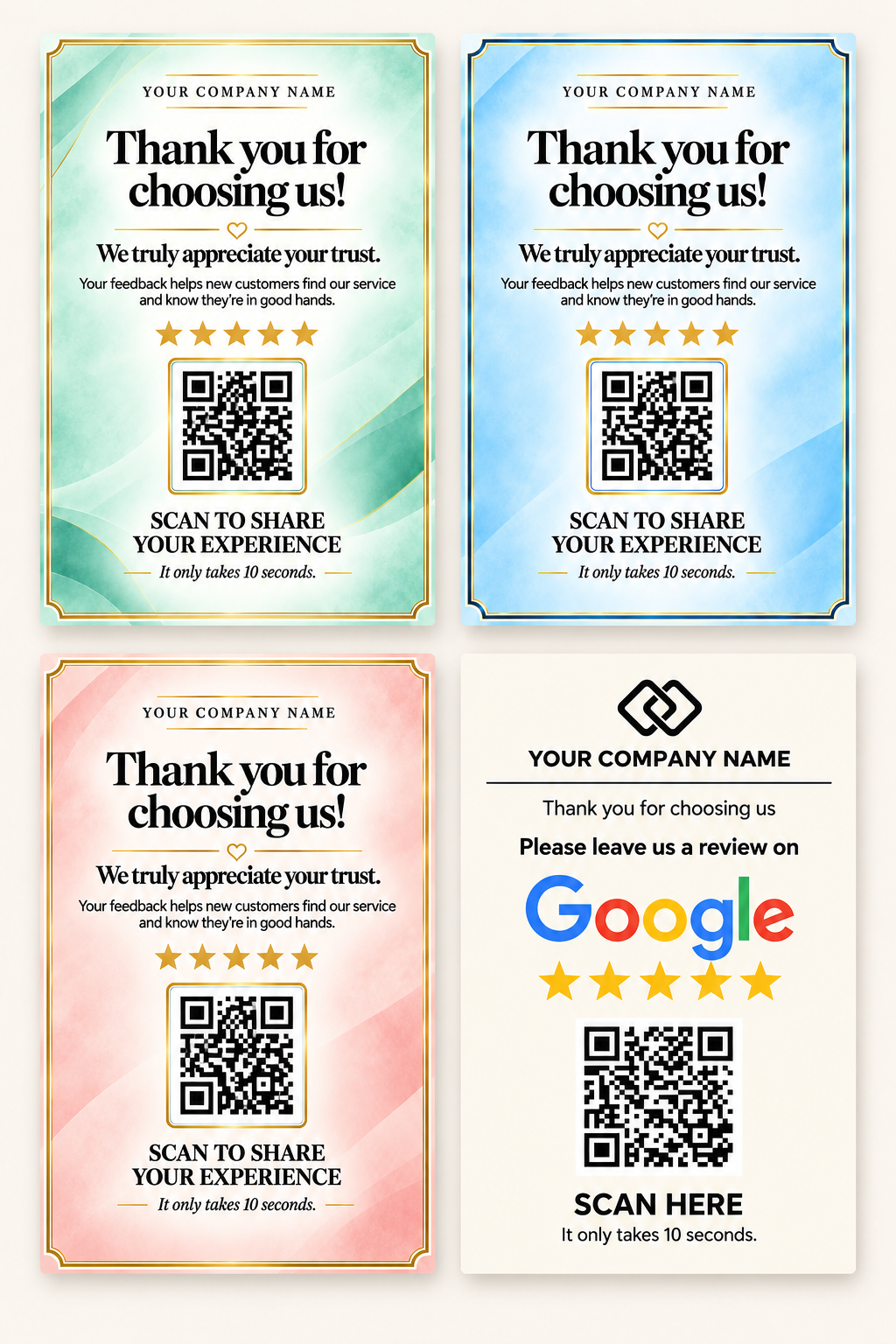
Front and Back: Two Practical Google Review Business Card Layouts
How should you divide the information between the two sides?
That depends on whether the card is dedicated to reviews or also serves as a traditional business card.
Layout 1: Dedicated Review Card
Front
WILLOW HAIR STUDIO
Thank You for Visiting!
How Was Your Experience?
[QR Code]
Scan to Leave a Google Review
Back
Willow Hair Studio
We appreciate your feedback.
This layout keeps the QR code on the front, where customers are most likely to notice it.
The reverse side is optional. If you're printing on one side only, you can leave the back blank.
For a dedicated review card, the QR code and scanning instruction should generally take priority over decorative elements.
Layout 2: Business Card With a Review QR Code
Front
GREEN OAK LANDSCAPING
Michael Davis
Landscaping & Lawn Care
Phone: [Business Phone]
Website: [Business Website]
Back
Thank You for Choosing Us!
Share Your Experience on Google
[QR Code]
Scan to Leave a Review
This design allows the business to share its contact information and request feedback using the same card.
It can be particularly practical for contractors, cleaners, auto detailers, and other businesses that already hand out contact cards.
The tradeoff is that someone must turn the card over to discover the review request.
If collecting customer feedback is the card's main purpose, a dedicated review design may communicate that more clearly.
What Size Should a Google Review QR Code Business Card Be?
You can use standard business-card dimensions.
Two common formats are:
| Format | Dimensions |
|---|---|
| Standard US business card | 3.5 × 2 inches (89 × 51 mm) |
| Common European business card | 85 × 55 mm |
Both offer enough room for a simple review invitation and QR code if the layout is designed carefully.
The challenge isn't the card size itself. It's fitting everything onto a small surface without making the code difficult to scan.
How Large Should the QR Code Be?
For a standard business card, a QR code approximately 1 inch (25 mm) square is a useful starting point.
That isn't a universal minimum. The appropriate size depends on the QR code's complexity, print quality, contrast, and scanning distance.
Keep a clear margin around the code and avoid placing decorative elements too close to it.
Most importantly, test the QR code at its actual printed size.
A code that works perfectly on your computer screen may be harder to scan after printing if it has been reduced too much.
What About Printing?
A matte finish can be a practical choice because it reduces reflections that may interfere with scanning.
If you're using a professional printer, ask about the required file format, bleed, and safe margins.
Don't place the QR code or essential text too close to the edges, where trimming could cut into them.
And before ordering hundreds of cards, print a single sample and scan it with your phone.
How to Get the QR Code for Your Business Card
You can obtain a Google review QR code directly from your Google Business Profile.
Google provides this option for free.
To get the code:
- Open your Google Business Profile in a computer browser.
- Select Read Reviews.
- Choose Get more reviews.
- Right-click the displayed QR code and select Save image as.
According to Google's instructions, the QR code download feature is currently available through a computer browser rather than the mobile interface.
You can find the steps in Google's official review QR code guide.
Once downloaded, the QR code can be placed in your business-card design.
Check that it leads to the correct review page, especially if your business operates multiple locations.
You don't need an NFC chip or a physical electronic device. The printed QR code works with compatible smartphone cameras.
Creating the Card Yourself vs. Ordering a Personalized Design
Once you have the QR code, you need a design that includes your business information and a clear review invitation.
You have two options.
Design the Card Yourself
You can use Canva or another design editor to create the layout.
You'll need to choose the card dimensions, arrange the text, add your business name or logo, insert the QR code, and prepare the file for printing.
Editable Google review card templates can make this process easier, but they still require customization.
This is a reasonable option if you enjoy working with design tools or want complete control over the layout.
Choose a Done-for-You Google Review Card
If you'd rather skip Canva, template editing, and QR-code setup, you can order a personalized digital review card instead.
At ReviewCardsApp, we create custom digital Google review cards for individual businesses.
You provide your business information and Google review link. The design is personalized with your details and a QR code connected to your review page.
The QR code is tested before delivery, and you receive a finished digital design rather than an editable template that you must complete yourself.
You can then print the card and use it with customers.
The product is a digital file, not a shipment of physical business cards. If you need a particular business-card size, check that the selected design is suitable for those printing dimensions before ordering.
For businesses that want a finished, personalized card without handling the design work, this can be the more convenient approach.
When Should You Hand Out Google Review QR Code Business Cards?
The best moment is usually after the customer has experienced your product or service.
You want the request to fit naturally into an existing interaction, not interrupt it.
Restaurants and Cafés
A restaurant could include a small review card with the bill.
A café might place cards near the pickup counter or hand them out with takeaway orders.
Customers can choose whether to scan the code at a convenient time.
Salons and Spas
A receptionist could offer a card after an appointment.
For example:
"Here's our Google review card if you'd like to share your experience."
There's no need to ask the customer to leave the review immediately.
Home-Service Businesses
A cleaner, plumber, or electrician could include a card with the final invoice or thank-you note.
This works well because the customer receives the card at the end of the service, when they can reflect on the overall experience.
Auto Repair and Detailing
A mechanic or detailer could place a review card alongside the paperwork provided when returning the customer's vehicle.
The card becomes part of the usual handover rather than a separate sales conversation.
Retail Businesses
Small review cards can be included in shopping bags or placed beside the checkout counter.
For retailers with many daily transactions, making cards consistently available may be easier than asking every customer individually.
Should You Hand Out Cards or Display Them on a Counter?
Both approaches have advantages.
Handing out cards works well when the customer is leaving your premises or when the business operates at different locations.
Customers can take the cards with them and review your business later.
Displaying cards works better when customers remain in one location long enough to notice and scan the QR code.
For example, a salon reception desk or café counter may be a suitable place for a small printed display.
If your primary goal is a permanent countertop display, a larger sign or tabletop card may be more readable than a standard business card.
For a detailed comparison of QR cards, digital designs, and other formats, see our guide to the best Google review cards for business.
Mistakes to Avoid With Google Review QR Code Business Cards
A small card has limited space, so a few design and usage mistakes can make it less useful.
Putting Too Much Information on the Card
Don't try to fit your entire business description, contact information, social media profiles, and multiple calls to action around the QR code.
Choose one clear purpose for each side.
Linking the QR Code to the Wrong Destination
The code should open your business's Google review page, not simply your website homepage.
Always test the destination before printing.
Using a QR Code That's Too Small
Shrinking the QR code to accommodate more text may make it difficult to scan.
Prioritize scanning reliability over decorative details.
Asking for Five-Star Reviews
Avoid wording such as "Give Us Five Stars" or "Leave Us a Positive Review."
Google prohibits manipulating review ratings, including selectively soliciting positive feedback.
Use neutral wording that invites customers to share genuine experiences.
Pressuring Customers to Review You Immediately
Don't stand beside a customer waiting for them to scan the card and submit a review.
Google's policies prohibit pressuring people to leave reviews while on the premises.
Make the card available, mention it naturally if appropriate, and let customers decide whether and when to use it.
Frequently Asked Questions
Can I Put a Google Review QR Code on My Regular Business Card?
Yes. You can place the QR code on the back of a traditional business card while keeping your contact details on the front.
Make sure the code is large enough to scan and clearly labeled as a link to your Google review page.
Do Google Review Business Cards Need NFC?
No. QR code review cards work without NFC technology.
Customers scan the printed code with their smartphone camera. NFC cards use a separate physical chip that customers tap with a compatible phone.
Can I Print the Same Design Multiple Times?
Yes. A digital review card can be printed repeatedly, provided the file is suitable for printing and you have the necessary usage rights.
You can distribute the same design to customers or place copies at different locations.
Can I Use the Same QR Code on Different Card Designs?
Yes. If the cards all direct customers to the same Google review page, the QR code can be reused.
For different business locations, use the appropriate review link for each location.
Are Google Review QR Code Business Cards Worth Using?
They can be useful for businesses that regularly interact with customers in person.
A card makes the review request visible and gives customers a direct route to the Google review page.
However, it doesn't guarantee additional reviews. Results depend on customer participation, placement, usability, and how naturally the request fits into your business.
A Small Card With One Clear Job
A Google review QR code business card doesn't need elaborate graphics or lengthy explanations.
It needs a recognizable business name, a clear invitation, and a QR code that customers can scan reliably.
Choose a dedicated review card if collecting feedback is the main purpose. Add a QR code to your existing business card if you want to combine contact information and review requests.
Whichever format you choose, keep the layout simple, test the printed code, and give customers the freedom to share honest feedback.
And if you prefer to skip designing and customizing the card yourself, ReviewCardsApp's personalized digital review cards offer a ready-to-use alternative that you can print for your business.