How to Make a Google Review Card: QR Code, Design & Printing Guide
To make a Google review card, get your review QR code from Google Business Profile, add it to a simple card design with your business name and a short review request, then download and print the finished design. If you don't want to work with templates, QR code files, and print layouts, you can order a personalized digital review card instead.
You don't need special equipment or a paid QR code generator. Google provides the review QR code for free, and you can create the card using a design tool such as Canva.
The important part is making sure the code opens the correct review page, remains easy to scan after printing, and fits the way you plan to use the card.
Here's the complete process.
Step 1: Get Your Google Review QR Code
Start with your Google Business Profile. This is where you can get a direct link and QR code for customers to leave a review of your business.
You should use a computer for this step. According to Google's current instructions, review QR codes can be generated through a desktop browser, not directly through the mobile interface.
How to Download the QR Code From Google
- Open Google Business Profile in your computer's browser.
- Sign in with the Google account that manages your business.
- Open your Business Profile.
- Click Read Reviews.
- Select Get more reviews.
- Google will display your review link and QR code.
- Right-click the QR code and select Save image as to download it.
You can also copy the review link from this screen.
For current instructions, see Google's official guide to creating a review link or QR code.
Important: If you operate several business locations, make sure you're working with the correct Google Business Profile. Each location should have a QR code that leads to its own review page.
Do You Need a Separate QR Code Generator?
Not necessarily.
Google's built-in option is sufficient for creating a basic QR code that links to your review page.
You can also copy your direct Google review link and enter it into a third-party QR code generator if you need a different file format or additional design options.
If you choose a third-party generator, check whether the code is static or dynamic.
- Static QR code: Contains a fixed destination link. It doesn't depend on a paid QR code management subscription.
- Dynamic QR code: Usually points through a service that can redirect visitors to another URL. This can allow destination changes, but some services require ongoing payment.
For a straightforward Google review card, Google's own QR code is a sensible starting point.
Step 2: Choose Your Google Review Card Size
Before designing the card, decide how customers will encounter it.
A card handed to someone at checkout has different requirements from a sign displayed across a reception desk.
Here are a few common options:
| Card Format | Example Size | Suitable For |
|---|---|---|
| Standard US business card | 3.5 × 2 inches | Handouts, shopping bags, appointment cards |
| European-style business card | 85 × 55 mm | Small printed review cards |
| Postcard-sized card | 4 × 6 inches | Counters and reception desks |
| Larger sign | 5 × 7 inches | Tabletop holders and displays |
These are starting points, not mandatory dimensions.
Compare each Google review card size, including postcard dimensions, display formats, QR code sizing, and print-resolution requirements.
For a compact handout, see our guide to a Google review QR code business card, including front-and-back layouts and what to include.
For a small card, you'll need to keep the text short so the QR code has enough room.
For a larger display, you can use bigger lettering and a more prominent QR code.
If you're using a professional printer, check the sizes and file requirements they support before starting the design.
Step 3: Design Your Google Review Card
Once you have your QR code and chosen dimensions, it's time to build the card.
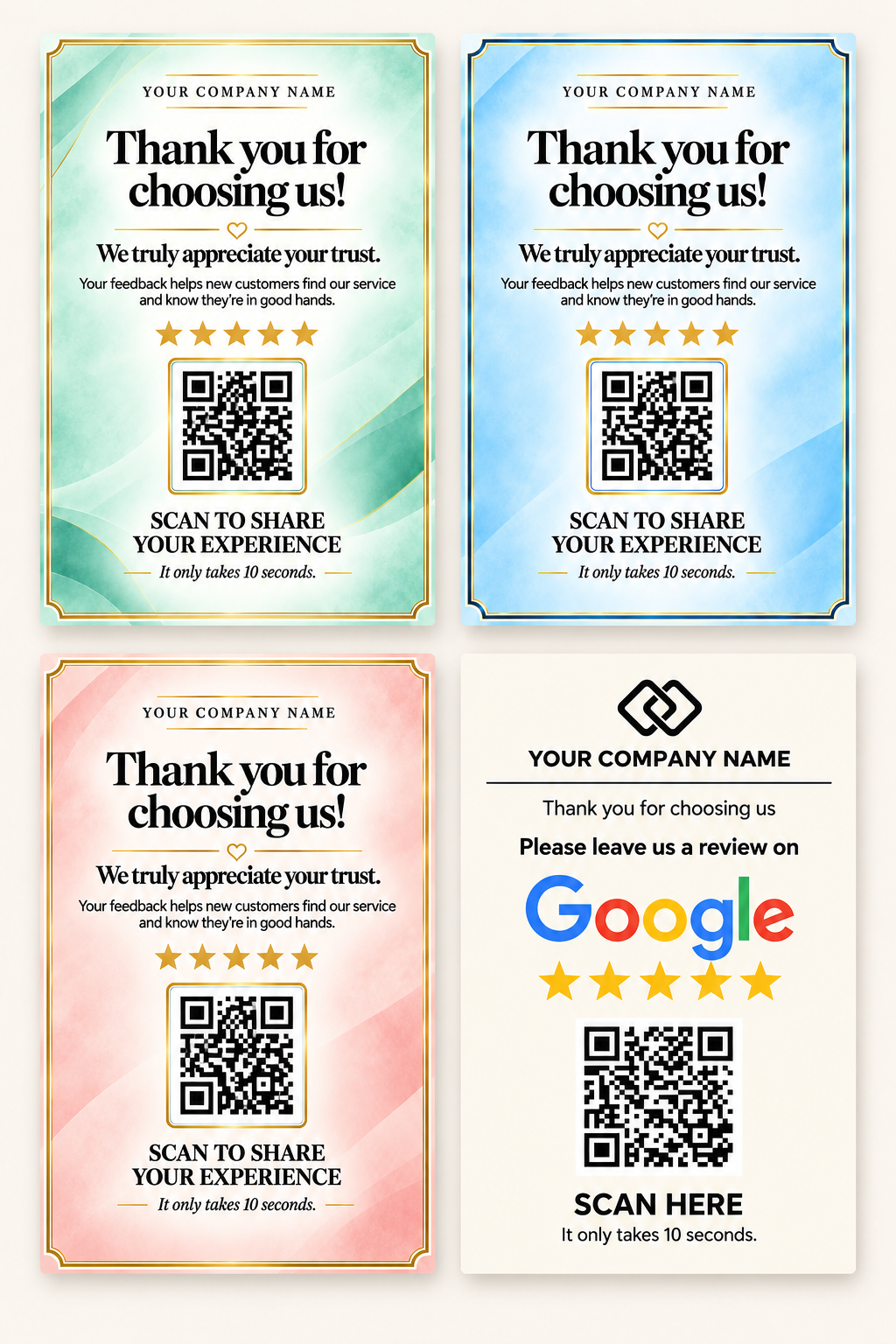
You can use Canva, another design editor, or a Google review card template.
A template can save time because the general layout is already prepared. However, you'll still need to customize the business information and insert your own QR code.
How to Make a Google Review Card in Canva
Here's a straightforward workflow.
- Open Canva and create a new design.
- Choose the appropriate dimensions, or enter a custom size.
- Select a simple template or start with a blank layout.
- Upload the QR code image you downloaded from Google.
- Place the QR code in a prominent position.
- Add your business name and a short review request.
- Adjust the colors, spacing, and typography.
Avoid overloading the design with decorative graphics. A review card needs to communicate one action clearly.
What Should You Put on the Card?
A basic Google review card only needs three elements:
1. A Clear Review Request
Use a short message such as:
"How Was Your Experience?"
"Scan to Leave Us a Google Review"
These two lines explain what you're asking customers to do.
2. Your Google Review QR Code
Make the QR code the most obvious functional element on the card.
Customers should be able to identify it immediately.
3. Your Business Identity
Add your business name or logo so customers recognize where the card came from.
You can also use your brand colors, provided the final design remains readable.
Here's an example of a simple layout for a hair salon:
THANK YOU FOR VISITING
Willow Hair Studio
How was your experience?
[Your Google Review QR Code]
Scan to Leave a Google Review
That's enough information for a usable card.
You don't need paragraphs explaining why reviews help your business. The customer only needs to understand the invitation and how to act on it.
Should You Use a Google Logo or Star Graphics?
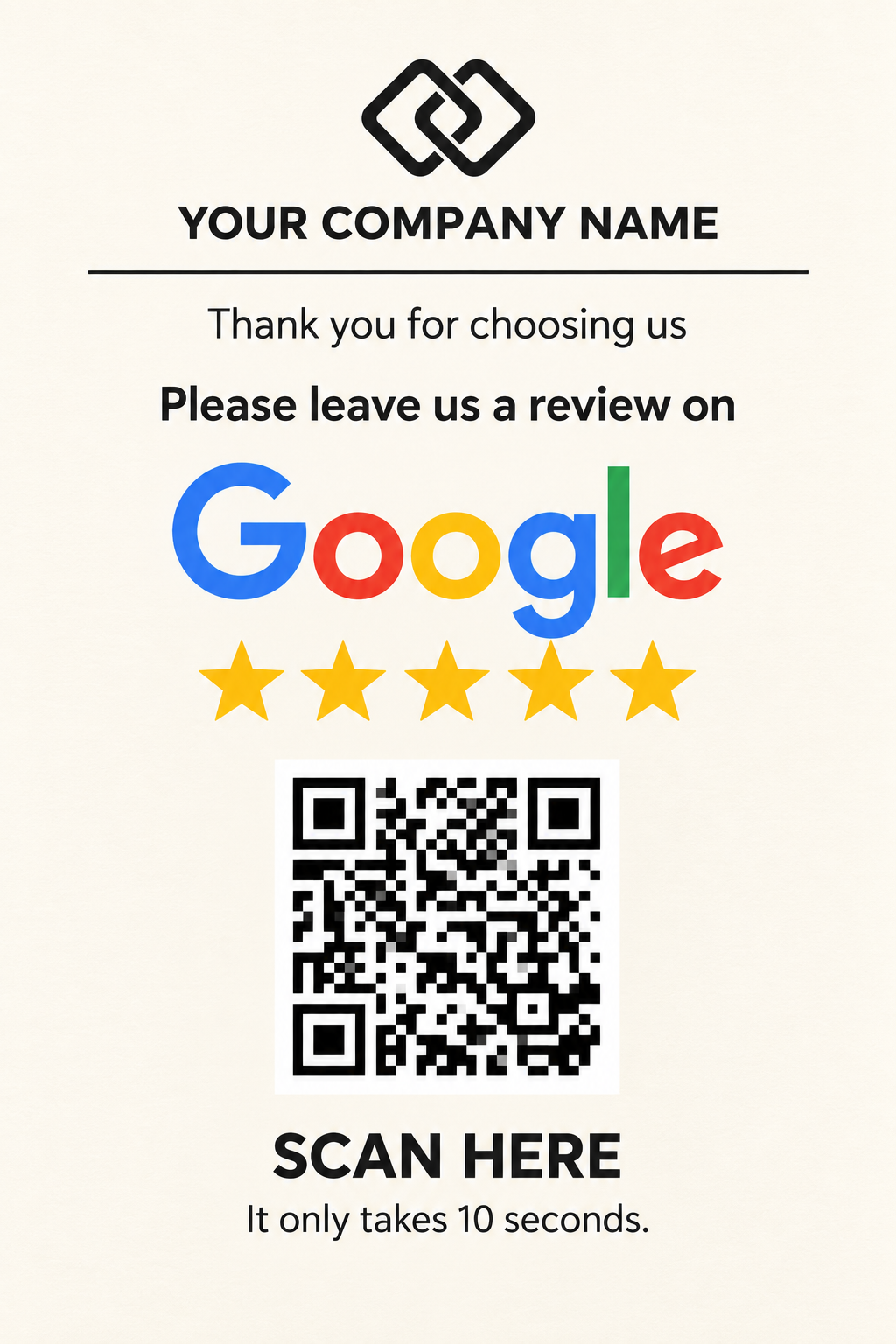
You don't need to use the Google logo to make the card recognizable.
A clear mention of "Google review" is enough to explain the destination.
If you use Google's branding, follow the applicable brand guidelines rather than modifying official logos or making the card look like an official Google-issued product.
Be careful with decorative five-star graphics, too. A row of five stars next to "Leave us a review" can imply that you're requesting a five-star rating.
Neutral wording keeps the invitation focused on genuine customer feedback.
Step 4: Make Sure the QR Code Is Easy to Scan
This is where an attractive design can become an unusable one.
A QR code may look perfectly fine on your computer screen but fail when printed too small, placed on a busy background, or distorted during resizing.
Check these details before exporting your design.
Keep Good Contrast
Dark QR code elements on a white or light background are usually a reliable choice.
Avoid using similar colors for the code and its background.
For example, a pale pink QR code on a white background may fit your salon's branding, but it can be harder for some phones to recognize.
Leave Empty Space Around the Code
QR codes need a clear border of empty space around them, known as the quiet zone.
Don't place text, graphics, or decorative lines directly against the code.
Don't Stretch the QR Code
Resize the QR image proportionally.
If you stretch a square QR code into a rectangle, you can distort its pattern and make it difficult or impossible to scan.
Make the Code Large Enough
On a handheld card, a QR code around 1 inch (25 mm) square can be a useful starting point, depending on its complexity and print quality.
There is no single perfect size for every card. The appropriate dimensions depend on how far away customers will be when they scan it.
A QR code on a reception sign needs to be larger than one on a business card.
Always test the code at the actual size you intend to print.
Step 5: Download Your Printable Google Review Card
Once the design is complete, export it in a format suitable for your intended use.
The two common choices are PNG and PDF.
PNG for Digital Use
A PNG file is convenient if you want to display the card on a screen or share the design electronically.
It can also be printed, provided the image resolution is sufficient.
PDF for Printing
A print-ready PDF is generally a good option when sending the design to a print shop.
If you're using Canva, look for its PDF Print export option.
Professional printers may require additional margins, bleed, or crop marks depending on how the card will be produced.
Check those requirements before placing a bulk print order.
For professional printing, a resolution equivalent to 300 DPI at the final printed size is a common target for raster artwork.
Don't assume that enlarging a small image will improve its quality.
If the QR code looks pixelated at the final size, use a higher-quality source file rather than simply stretching the existing image.
Step 6: Print Your Google Review Card
You can print the card at home or use a professional printing service.
Printing at Home
Home printing works well for testing your design or producing a small number of cards.
Use suitable cardstock or thicker paper if you want a more durable result.
When printing from a PDF, check that the printer isn't automatically scaling the page and changing your intended card dimensions.
After printing, cut out one sample before printing the entire batch.
Using a Print Shop
A professional printer can be useful if you need larger quantities, precise cutting, or a more durable finish.
Ask which file format and dimensions they prefer.
You may also want to consider whether the card will be handled frequently or placed in a holder.
For example, a contractor who hands cards to customers might prefer a sturdy business-card format.
A restaurant displaying the design in a tabletop holder may not need the same material because the printed card is protected by the holder.
A glossy finish can look attractive, but reflections may sometimes interfere with scanning. Test the finished material under realistic lighting conditions.
Step 7: Test the Finished Card Before Using It
Don't skip this step.
Testing only the digital QR code isn't enough. You also need to test the final printed version.
Use this checklist:
- Scan the card with your smartphone camera.
- Confirm that it opens the correct business's Google review page.
- Check that customers can reach the review interface.
- Try scanning from the distance customers would normally use.
- Test under the lighting conditions where the card will be displayed.
- If possible, test with a second phone.
For example, if you're placing a review card in a restaurant's tabletop holder, test it inside the holder rather than only testing the paper by itself.
Glare from the holder or overhead lighting can change how easy it is to scan.
If everything works, your card is ready to use.
Common Problems When Making a Google Review Card
Here are a few issues worth checking before you print dozens of copies.
| Problem | What to Check |
|---|---|
| QR code won't scan | Code size, contrast, distortion, glare, and empty space |
| QR code opens the wrong business | Review link and selected Google Business Profile |
| QR code opens your homepage | You may have used your website URL instead of the direct review link |
| Printed QR code looks blurry | Source image resolution and export settings |
| Card text is difficult to read | Font size, contrast, and unnecessary wording |
| QR code previously worked but stopped | Whether the destination link or third-party QR service has changed |
One useful precaution is to save the original review link alongside your design files.
If you need to recreate the card later, you'll know which URL the QR code was supposed to use.
Where Should You Put Your Finished Google Review Card?
Start with one or two places where customers can conveniently scan the card.
For example:
- Restaurant: A tabletop holder or payment area where customers have a moment to scan.
- Hair salon: The reception desk where customers finish their appointment.
- Retail store: A small display near checkout.
- Dental practice: A reception counter or printed aftercare information.
- Home-service business: A thank-you card provided after the job is completed.
A QR card works best when the customer can see it clearly and access it without interrupting their normal activities.
If you're contacting customers by email or WhatsApp, include a clickable Google review link rather than relying only on a QR code image. Scanning a code displayed on the same phone can be inconvenient.
And remember that Google reviews must reflect genuine customer experiences. Don't offer rewards for reviews, request only five-star ratings, or selectively give cards to customers you expect to leave positive feedback.
You can read Google's review content policies for the applicable restrictions.
Can You Order a Google Review Card Instead of Making One?
Yes. If you don't want to work with templates, QR code files, and print layouts, you can order a personalized digital review card instead.
The distinction is between purchasing an editable template and receiving a finished design.
With an editable template, you're still responsible for customization.
With a done-for-you product, the design is personalized for your individual business.
ReviewCardsApp's custom digital Google review cards are designed for business owners who prefer the second option.
You provide your business information and Google review destination, and the finished digital card is customized with your details and QR code.
You don't need to generate the QR code yourself or insert it into a Canva template.
The finished file can then be printed for use with customers.
If you'd like to understand the ordering process, see our guide on how to order Google review cards.
Frequently Asked Questions
Can I Make a Google Review Card for Free?
Yes. Google provides a free review QR code through your Google Business Profile, and you can create a basic design using free design tools.
You'll only need to pay if you choose premium design features, a professional customization service, or printing.
Can I Make a Google Review Card Without Canva?
Yes. Canva is one option, but any design editor that allows you to import a QR code image and arrange text can work.
You can even place the QR code on a simple document, provided the printed result is readable and scans correctly.
Do I Need to Buy an NFC Card?
No. A Google review card with a QR code doesn't require NFC hardware.
Customers can scan the printed QR code using their smartphone cameras.
Can I Use the Same QR Code on Multiple Cards?
Yes. If all the cards should link to the same Google review page, you can reuse the QR code across different printed designs.
For different business locations, use the correct review destination for each location.
Will a Google Review Card Automatically Get Me More Reviews?
No. The card gives customers a convenient way to reach your review page, but it doesn't guarantee they'll leave feedback.
Making the card visible, easy to scan, and available at an appropriate moment can reduce friction in the review process.
Final Checklist: Your Google Review Card Is Ready
Before distributing your cards, make sure you've completed these essentials:
- Downloaded the correct Google review QR code.
- Created a design with your business name and a clear review invitation.
- Kept the QR code readable and free from obstructions.
- Exported a file suitable for your chosen printing method.
- Tested the actual printed card with a smartphone.
- Confirmed that the QR code opens your business's review page.
You now have a Google review card that customers can use without searching for your business manually.
You can create one yourself using Google's free QR code and a basic design tool, or choose a personalized design if you'd rather skip the setup work.
Either way, the most important result is a card that looks clear, scans reliably, and makes it easy for customers to share genuine feedback.